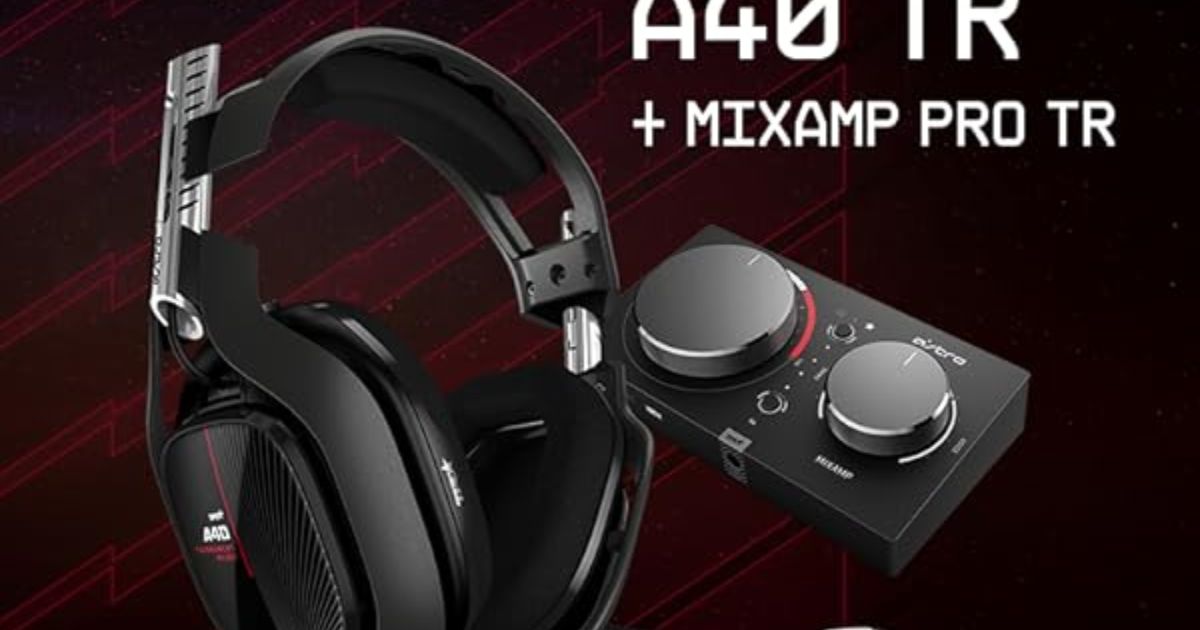
The Astro A40 TR headset, combined with the MixAmp Pro TR, is celebrated among serious gamers and streamers. This dynamic duo delivers unparalleled game : voice balancing, high‑quality audio, and full customization through the ASTRO Command Center. Whether you’re on PC, Xbox, PlayStation, or Mac, this setup lets you tailor your listening experience for competitive accuracy or immersive audio.In this guide, we’ll walk through everything—from unboxing and initial connections to firmware updates, software configuration, EQ presets, Dolby settings, and advanced tuning tricks. We’ll also include real-world advice from users who’ve been through the setup battles and emerged victorious. Let’s dive in.
Why Choose the Astro A40 TR + MixAmp Pro TR?
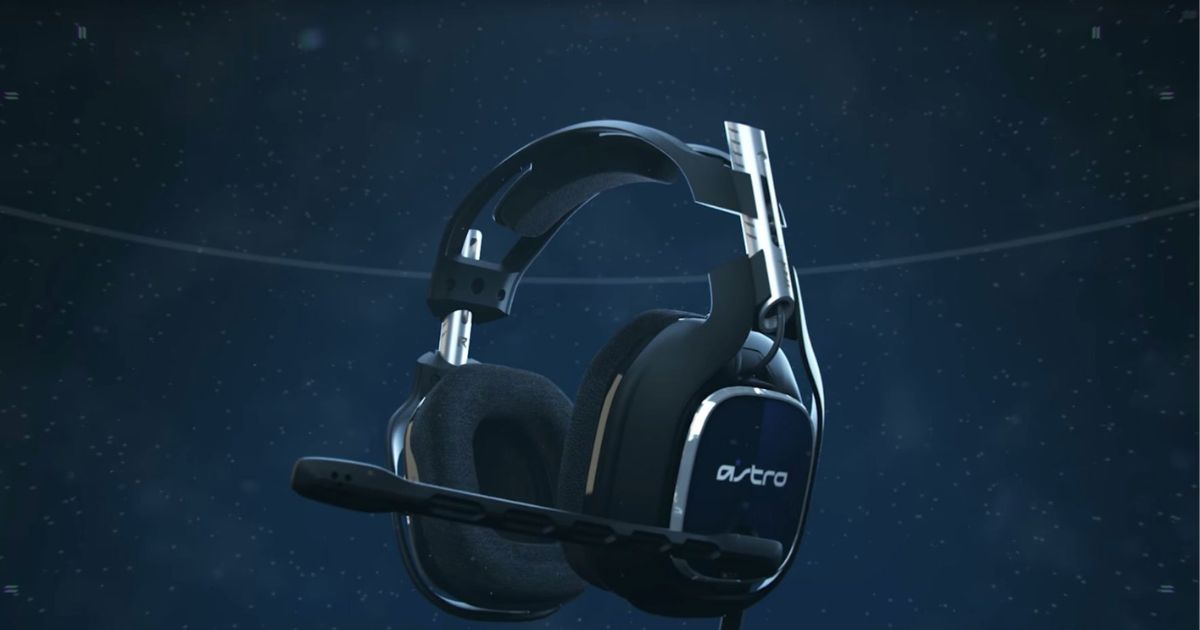
Before diving into the setup process, let’s explore why the Astro A40 TR and MixAmp Pro TR are a go-to choice for gamers. The A40 TR headset is renowned for its lightweight yet durable construction, premium comfort, and exceptional audio quality delivered through 40mm drivers. The MixAmp Pro TR, meanwhile, is an external audio processing unit that acts as a digital-to-analog converter (DAC) and amplifier, offering Dolby Audio processing, customizable EQ presets, and precise game-to-voice balance control. Together, they provide:
- Immersive Audio: Dolby Audio creates a cinematic 3D soundscape, perfect for pinpointing in-game sounds like footsteps or explosions.
- Customizable Sound: The Astro Command Center (ACC) software lets you tweak EQ settings for different games or genres.
- Seamless Communication: The MixAmp’s game-to-voice balance knob ensures you can prioritize game audio or team chat as needed.
- Versatility: Compatible with PC, Mac, PlayStation, Xbox, and even streaming setups, with support for mods like noise-canceling ear cushions.
- Tournament Ready: Designed for competitive gaming, Ghost Of Tsushima PC with features like a swappable precision mic and customizable speaker tags.
This guide will cover setup for PC, PlayStation, and Xbox, along with tips for optimizing audio settings and troubleshooting common issues. Let’s get started!
Unboxing Your Astro A40 TR + MixAmp Pro TR
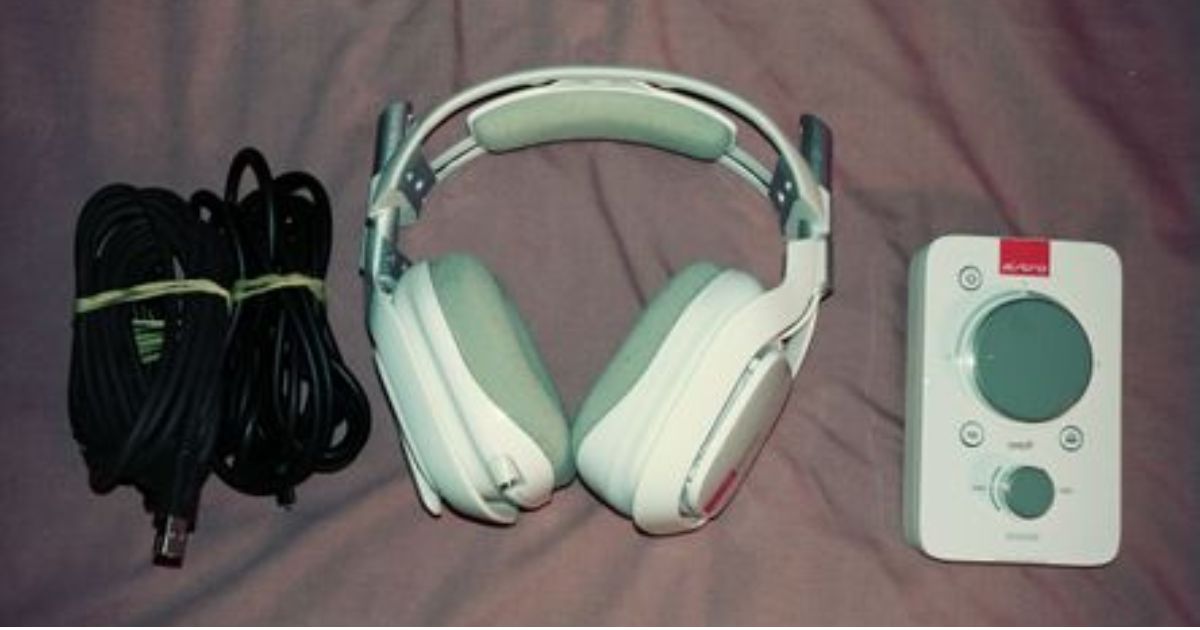
When you open the box, you’ll find a carefully curated set of components designed to get you gaming quickly. Here’s what’s typically included:
- Astro A40 TR Headset
- MixAmp Pro TR
- A40 TR Inline Mute Cable (3.5mm)
- Micro-USB Cable (for power and firmware updates)
- Optical TOSLINK Cable (for Dolby Audio on consoles)
- Quickstart Guide
- Optional: Customizable speaker tags or additional cables (depending on the bundle)
The packaging is sturdy, reflecting the premium quality of the product. The astro a40 mixamp pro tr has a sleek, compact design with two prominent knobs for volume and game-to-voice balance, plus buttons for EQ presets and Dolby Audio. astro a40 tr headset + mixamp pro 2019 The headset feels robust yet lightweight, with plush ear cushions and a flexible headband for long gaming sessions.
Step-by-Step Setup Guide
Preparation: Update Firmware
Before connecting anything, ensure your astro a40 tr + mixamp pro is using the most recent Firmware for compatibility and performance. This step is crucial, as outdated Firmware can cause audio issues or limited functionality.
Download Astro Command Center (ACC):
- Visit the official Astro Gaming website (astro.headset.com) and download the ACC software for your PC or Mac.
- Install the software and launch it.
Connect the MixAmp:
- Plug the micro-USB cable into the MixAmp Pro TR and connect the other end to a USB port on your PC or Mac.
- Set theastro a40 tr headset mixamp pro tr mode by toggling the switch on the back (if applicable, as some models have a single mode).
Update Firmware:
- The ACC software will automatically identify the MixAmp and, if a newer firmware version is available, advise you to update it.
- To finish the update, adhere to the on-screen directions. This may take a few minutes.
If you don’t have access to a PC, you may need to borrow one temporarily, as firmware updates are not possible directly on consoles.
Verify Update:
Once updated, the ACC will display the current firmware version. Keep the MixAmp connected for the next steps.
Setting Up for PC
The Astro A40 TR and MixAmp Pro TR are a dream for PC gamers, offering low-latency audio and full Dolby Audio support via USB. Here’s how to set it up:
Hardware Connections:
Connect the MixAmp to Your PC:
- Plug the micro-USB cable into the MixAmp and a USB port on your PC for power and audio.
Connect the Headset:
- Use the A40 TR Inline Mute Cable. Plug the 3.5mm end closest to the mute switch into the headset’s 3.5mm port.
- Connect the other end to the “Headset“ port on the front of the MixAmp Pro TR.
Set to PC Mode:
- Ensure the MixAmp is in PC mode (check the toggle switch on the back, if present).
Software Configuration:
Windows Sound Settings:
- Open the Windows Control Panel and navigate to Sound (or Settings > System > Sound > Sound Control Panel on Windows 10/11).
- In the Playback tab, right-click “Astro MixAmp Pro Game“ and set it as the Default Device.
- Right-click “Astro MixAmp Pro Voice“ and set it as the Default Communication Device.
- In the Recording tab, right-click astro gaming mixamp pro tr and set it as the Default Device and Default Communication Device.
Test Audio and Mic:
- Play a game or an audio file to test the headset’s output.
- Speak into the microphone and check the green bars in the Recording tab to ensure it’s picking up your voice. If it doesn’t, make sure the mute switch on the inline cable is off.
Optional: Optical Cable:
- If you’re using a sound card with an optical output, Dead Space Review Embargo connect the TOSLINK cable from the MixAmp’s “Optical In“ to the PC’s optical output for Dolby 7.1 surround sound.
Astro Command Center Configuration:
- Open the ACC software and select your MixAmp Pro TR.
- Adjust EQ Presets (e.g., Astro, Balanced, FPS, or custom) to suit your gaming needs. For example, FPS mode boosts footsteps and gunfire for competitive games.
- Fine-tune Mic Settings for noise cancellation and sidetone (hearing your own voice).
- Save your settings to one of the four onboard EQ profiles, accessible via the MixAmp’s EQ button.
Setting Up for PlayStation (PS4/PS5)
For PlayStation users, the setup varies slightly due to console-specific audio outputs and the need for an optical connection on some models.
Hardware Connections:
Connect the MixAmp to Your Console:
- Plug the micro-USB cable into the MixAmp and a USB port on your PS4/PS5 for power and voice chat.
- For PS4, connect the TOSLINK optical cable from the MixAmp’s “Optical In“ to the console’s optical port for game audio.
- For PS5, you’ll need the Astro HDMI Adapter (sold separately) to extract optical audio, as the PS5 lacks a built-in optical port. Connect the adapter to the PS5’s HDMI port, then run the TOSLINK cable from the adapter to the MixAmp.
Connect the Headset:
- Use the A40 TR Inline Mute Cable to connect the headset to the MixAmp’s “Headset“ port, as described in the PC setup.
Set to PlayStation Mode:
- Toggle the MixAmp to PS4/PS5 mode (check the switch on the back). How To Fix 9anime Subs Not Showing? If your MixAmp only supports PC/Xbox, it may not work with PlayStation without additional configuration.
Console Settings:
PS4 Settings:
- Go to Settings > Devices > Audio Devices.
- Set Input Device and Output Device to “USB Headset (Astro MixAmp Pro)”.
- Adjust the Microphone Level to ensure your voice is clear.
- Set Output to Headphones to “All Audio”.
PS5 Settings:
- Navigate to Settings > Sound > Microphone.
- Set Input Device to “USB Headset (Astro MixAmp Pro)”.
- Adjust the Microphone Level for optimal voice clarity.
- Set Output Device to “USB Headset (Astro MixAmp Pro)“ and Output to Headphones to “Voice Chat Audio”.
- Under HDMI Device Type, select “AV Amplifier“ and set Number of Channels to “5.1 ch”. Set Audio Format (Priority) to “Dolby”.
Enable Dolby Audio:
Press the Dolby button on the MixAmp to activate surround sound. The LED indicator will light up.
Setting Up for Xbox (Series X|S, One)
Xbox setup is similar to PlayStation but requires specific configurations for Dolby Atmos.
Hardware Connections:
Connect the MixAmp:
- Use the micro-USB cable to connect the MixAmp to a USB port on your Xbox for power and voice chat.
- Connect the TOSLINK optical cable from the MixAmp’s “Optical In“ to the Xbox One’s optical port. For Xbox Series X|S, use the Astro HDMI Adapter to extract optical audio.
Connect the Headset:
- Use the A40 TR Inline Mute Cable to connect the headset to the MixAmp’s “Headset“ port.
Set to Xbox Mode:
- Toggle the MixAmp to Xbox mode using the switch on the back.
Console Settings:
Xbox Settings:
- Sign in to your Xbox profile.
- Go to Settings > General > Volume & Audio Output.
- Set Headset Audio to “Dolby Atmos for Headphones“ Krnl Key | Krnlkey Online | Krnl Key Bypass (requires downloading the Dolby Access app from the Microsoft Store, which is free with the MixAmp’s lifetime license).
- Set Chat Mixer to balance game and voice audio as desired.
Enable Dolby Atmos:
- Press the Dolby button on the MixAmp to activate Dolby Atmos. The LED will indicate it’s enabled.
Optimizing Your Audio Experience
Now that your A40 TR and MixAmp Pro TR are set up, let’s dive into optimizing your audio for gaming, streaming, or competitive play.
Using Astro Command Center:
EQ Presets:
- The MixAmp supports four onboard EQ presets, switchable via the EQ button. Use the ACC to customize these for specific games:
- FPS Games (e.g., Call of Duty, Apex Legends): Boost high frequencies for footsteps and gunfire.
- Story-Driven Games (e.g., The Last of Us): Emphasize mids and lows for cinematic audio.
- Streaming: Balance mids for clear voice output.
Mic Settings: Adjust noise gate, sidetone, and mic sensitivity to reduce background noise and optimize voice clarity.
Stream Port: Connect the MixAmp’s stream port to a capture card or PC for streaming, allowing you to control what your audience hears.
Game-to-Voice Balance:
- Use the astro a40 tr headset mixamp pro tr game-to-voice knob to adjust the balance between game audio and voice chat. Turn left for more game audio, right for more voice chat. This is especially useful in team-based games like Valorant or Overwatch.
Dolby Audio vs. Stereo:
- For competitive gaming, enable Dolby Audio for a 3D soundstage to locate enemies by sound.
- For music or non-surround content, toggle off Dolby (use the “Star“ mode) and select a stereo-focused EQ preset.
Mod Kit (Optional):
- The A40 TR is “Mod Kit Ready,“ allowing you to add noise-canceling ear cushions, a padded headband, and a voice-isolating mic for tournament environments. These are sold separately but enhance comfort and audio isolation.
Troubleshooting Common Issues
Even with a premium setup like the A40 TR and MixAmp Pro TR, issues can arise. Here are solutions to common problems:
No Audio:
- Ensure the MixAmp is in the correct mode (PC, PS4, or Xbox).
- Check that the mute switch on the inline cable is off.
- Verify that the correct devices are set as default in your PC or console sound settings.
Microphone Not Working:
- Ensure the “Astro MixAmp Pro Voice“ is set as the default recording device.
- If using a Gen 4 MixAmp, confirm you’re using the correct inline mute cable (non-TR for Gen 4).
- Test the mic in the ACC software or Windows Recording settings.
Game-to-Voice Knob Not Working:
- Ensure “Astro MixAmp Pro Game” and “Pro Voice“ are set correctly in Windows sound settings.
- If both game and voice audio adjust simultaneously, How To Fix 9anime Subs Not Showing? try disabling “Line – Astro MixAmp Pro Game“ in the Recording tab.
Poor Audio Quality:
- Update the Firmware via ACC.
- Toggle Dolby Audio off for non-gaming content like YouTube, as it may distort stereo audio.
- Adjust EQ presets in the ACC for better balance.
PS5/Xbox Series X|S Optical Issues:
- Use the Astro HDMI Adapter to extract optical audio, as these consoles lack built-in optical ports.
For further assistance, visit the Astro Gaming support page or the r/AstroGaming subreddit for community tips.
Advanced Tips for Competitive Gamers
- Custom EQs: Create game-specific EQ profiles in the ACC. For example, boost 2-4 kHz for footsteps in FPS games or enhance 100-200 Hz for explosions in action games.
- Dolby Atmos on PC/Xbox: If using Dolby Atmos, set it to “Game – Performance Mode“ in the Dolby Access app to avoid over-processing.
- Streaming Setup: Use the MixAmp’s stream port to send game and voice audio to a streaming PC, ensuring your audience hears a balanced mix.
- Comfort Mods: Invest in the Mod Kit for long tournaments. The noise-canceling ear cushions block out crowd noise, and the padded headband reduces fatigue.
Why the Astro A40 TR + MixAmp Pro TR Stands Out

The Astro A40 TR and MixAmp Pro TR have earned their reputation as a staple in competitive gaming. As noted by BGeek, the A40s were iconic in the early 2010s Call of Duty esports scene, and they remain a top choice today for their durability, comfort, and audio fidelity. The MixAmp’s DAC and Dolby processing elevate any headset, not just the A40, making it a versatile investment. How to Fix PS5 Controller Stick Drift: A Comprehensive Guide Whether you’re streaming, competing, or immersing yourself in single-player games, this setup delivers pro-quality audio that’s hard to beat.
Conclusion
The Astro A40 TR with MixAmp Pro TR offers unmatched gaming audio flexibility precise mixing, custom EQ, and powerful surround audio support. Achieving a perfect setup is straightforward if you follow proper steps: USB-only on PC, console-specific wiring, firmware updates, and Command Center configs.Rely on credible sources and user-shared lessons: avoid optical on PC, turn off Dolby on MixAmp if using virtual surround, and always ensure your headset cable is fully plugged in. Leveraging user presets and adjusting EQ to your preference helps tailor combat audio cues for maximum clarity, whether you’re chasing footsteps in Valorant or coordinating a raid on Destiny.By following this guide from unboxing to pro-level streaming output—you’ll unlock the full potential of Astro’s hardware and have a head‑start on competitive advantage or immersive soundscapes.
FAQ
1. Do I need the optical cable if I’m using the Astro A40 TR on PC?
No. Use a USB only for a PC. Optical cables can cause latency issues and aren’t necessary for full-quality audio on computers.
2. Is the Astro A40 TR compatible with the PlayStation 5 or Xbox Series X/S?
Yes. For Xbox, it works natively with USB and optical. For PS5, you may need an HDMI-to-optical adapter since the PS5 lacks an optical port.
3. How do I update the MixAmp Pro TR firmware?
Connect the MixAmp to a PC via USB, open ASTRO Command Center, and follow the firmware update prompt. This step is crucial before console setup.
4. Why does my audio sound echoey or hollow?
This usually happens when Dolby on the MixAmp is active while Windows Sonic or Dolby Atmos for Headphones is also enabled on your system. Turn one off to prevent double processing.
5. Can I create custom EQ presets for different games?
Absolutely. Using ASTRO Command Center, you can make and save multiple EQ profiles (e.g., one for FPS, one for music) and load them directly onto the MixAmp.
6. What’s the purpose of the Game : Voice balance knob?
It lets you adjust in real time how much game sound vs. chat audio you hear, which is perfect for competitive play or loud lobbies.